Visual testing with your own tests
Keep your tests in your framework and add visual checks to them. At the points you choose, your test sends a screenshot to Wopee.io. Wopee.io compares it with the approved baseline, and you approve or reject every difference in Commander.
| Framework | Package | Guide |
|---|---|---|
| Playwright | @wopee-io/wopee.pw (npm) |
Playwright |
| Cypress | @wopee-io/wopee.cy (npm) |
Cypress |
| WebdriverIO | @wopee-io/wopee.wdio (npm) |
WebdriverIO |
| Robot Framework | wopee_rf (PyPI) |
Robot Framework |
| Anything else | GraphQL API | Any other framework |
Every guide uses the same example: log in to Sauce Demo, track the Login page and the Products page, approve both, then run again as visual_user to see a real visual difference.
How it works
Results are organised in three levels:
- Suite: one run of your tests. It appears as one entry in Runs.
- Scenario: usually one test. It groups the screenshots of that test.
- Step: one tracked screenshot, compared with its baseline.
A baseline is the approved screenshot of a step. It is identified by <scenario name>-<step name> together with the branch (default master) and the optional labels for OS, browser, viewport, device and custom tags. Keep scenario and step names stable between runs: renaming either one starts a new baseline.
A suite is reused when a suite with the same name already exists on the same branch, so the next run adds to the old entry in Runs. Put a timestamp or a CI build number into the suite name to get one entry per run.
Each tracked step returns a status:
| Status | Meaning |
|---|---|
new |
There is no baseline yet. Approve the screenshot to make it the baseline. |
ok |
The screenshot matches the baseline. |
unresolved |
The screenshot differs from the baseline. Approve it as the new baseline or reject it as a bug. |
autoApproved |
Approved automatically, for example when a matching baseline exists on another branch and auto-approve is on. |
After your review, Commander shows the step as Approved or Failed (rejected).
A visual difference never fails your test
The test passes even when a step is unresolved. You review differences in Commander. To fail the test as well, check the status the track call returns (each guide shows how) or use the framework's soft-assert switch where there is one.
1. Create a project
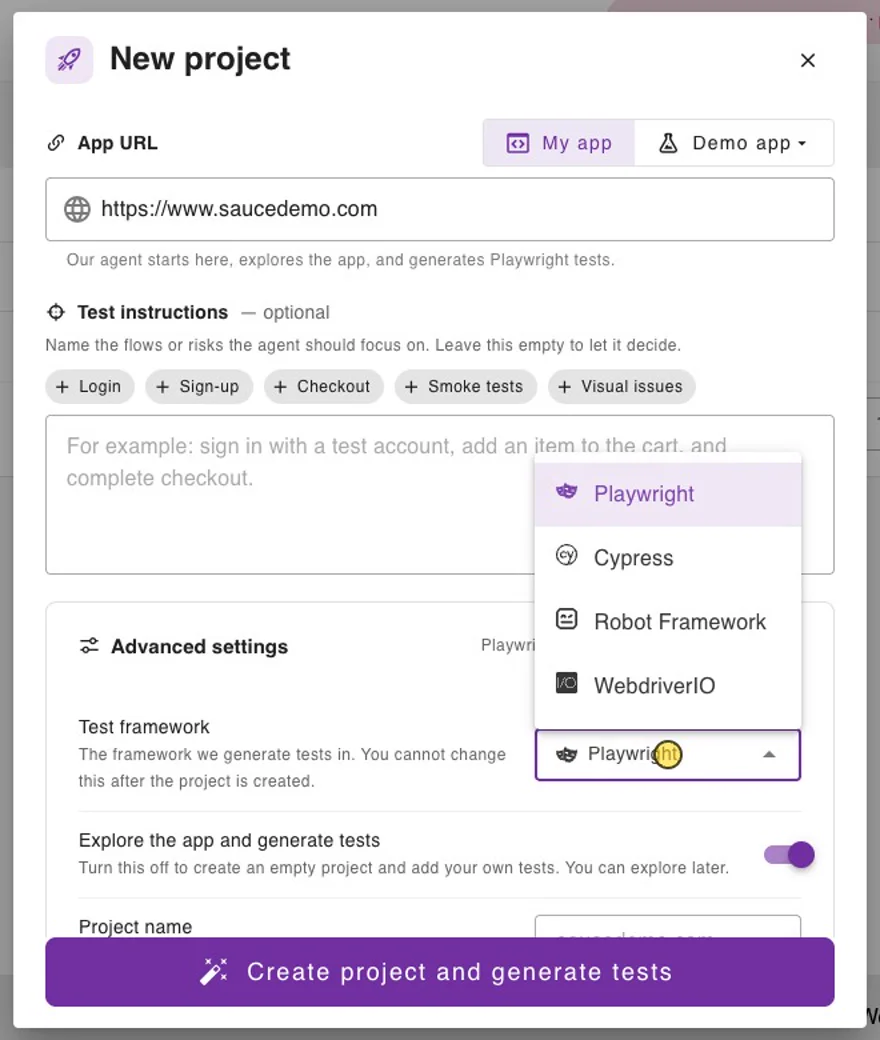
- In Commander, click NEW PROJECT and paste the App URL.
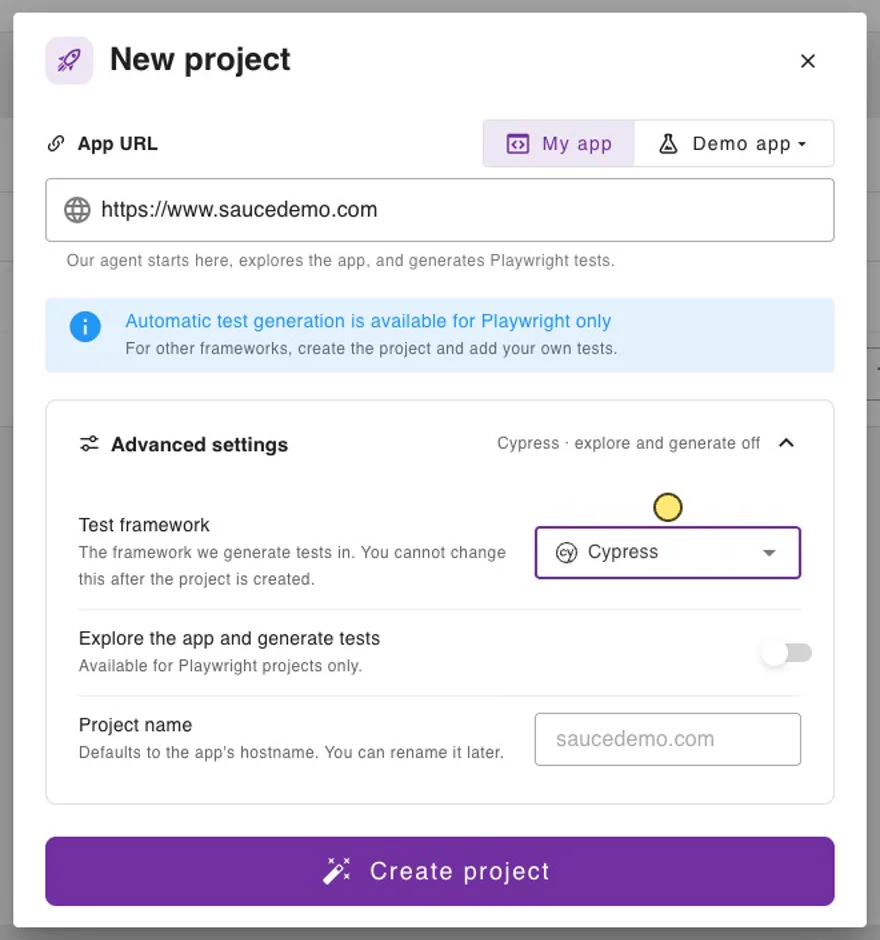
- Open Advanced settings and choose the Test framework: Playwright, Cypress, Robot Framework or WebdriverIO. You cannot change it after the project is created.
- Switch off Explore the app and generate tests. You bring your own tests, so the AI exploration is not needed. Automatic test generation is available for Playwright only; for the other frameworks the switch is already off.
- Click Create project.
2. Get the API key
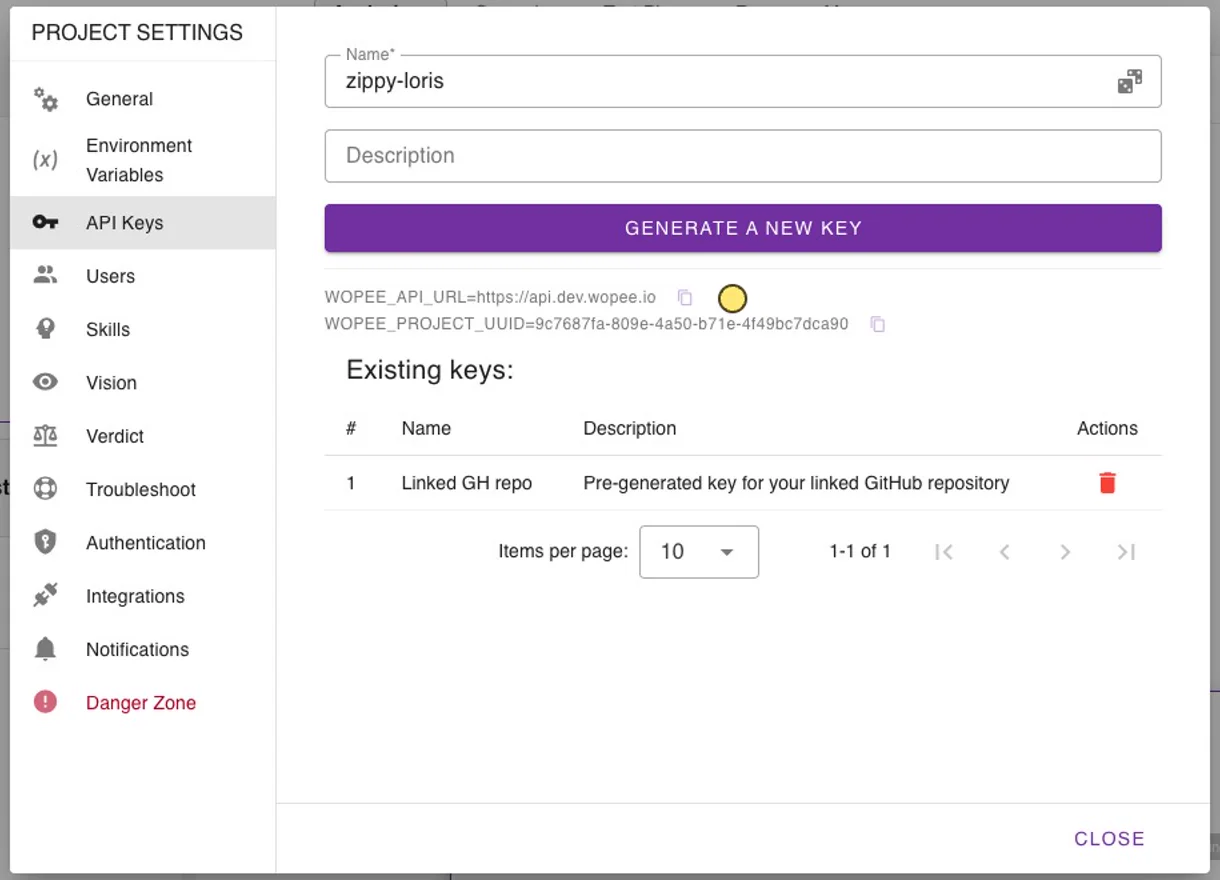
- In the project, open More › Settings › API Keys. The section shows
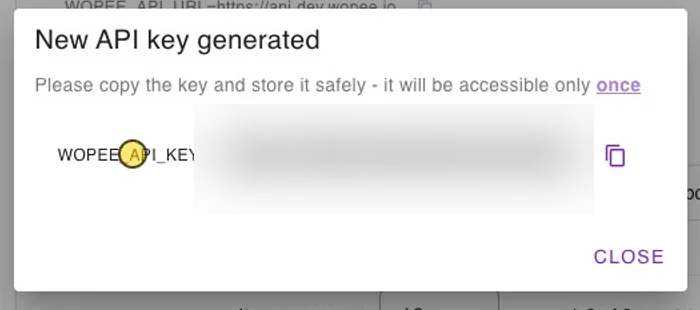
WOPEE_API_URLandWOPEE_PROJECT_UUID. - Enter a name and click Generate a new key. The dialog shows
WOPEE_API_KEYonly once: copy it right away. If you lose it, generate a new one and delete the old one under Existing keys.
Put the three values into a .env file in your test project:
https://api.wopee.io is the API of the cloud at cmd.wopee.io. Self-hosted instances show their own URL in API Keys. Add .env to .gitignore and never commit the key. In CI, set the same variables as secrets.
3. Review in Runs
Open the project and go to Runs. Select the run on the left, then a step of the scenario. The Comparison view shows the current screenshot; when a baseline exists, the baseline is shown next to it.
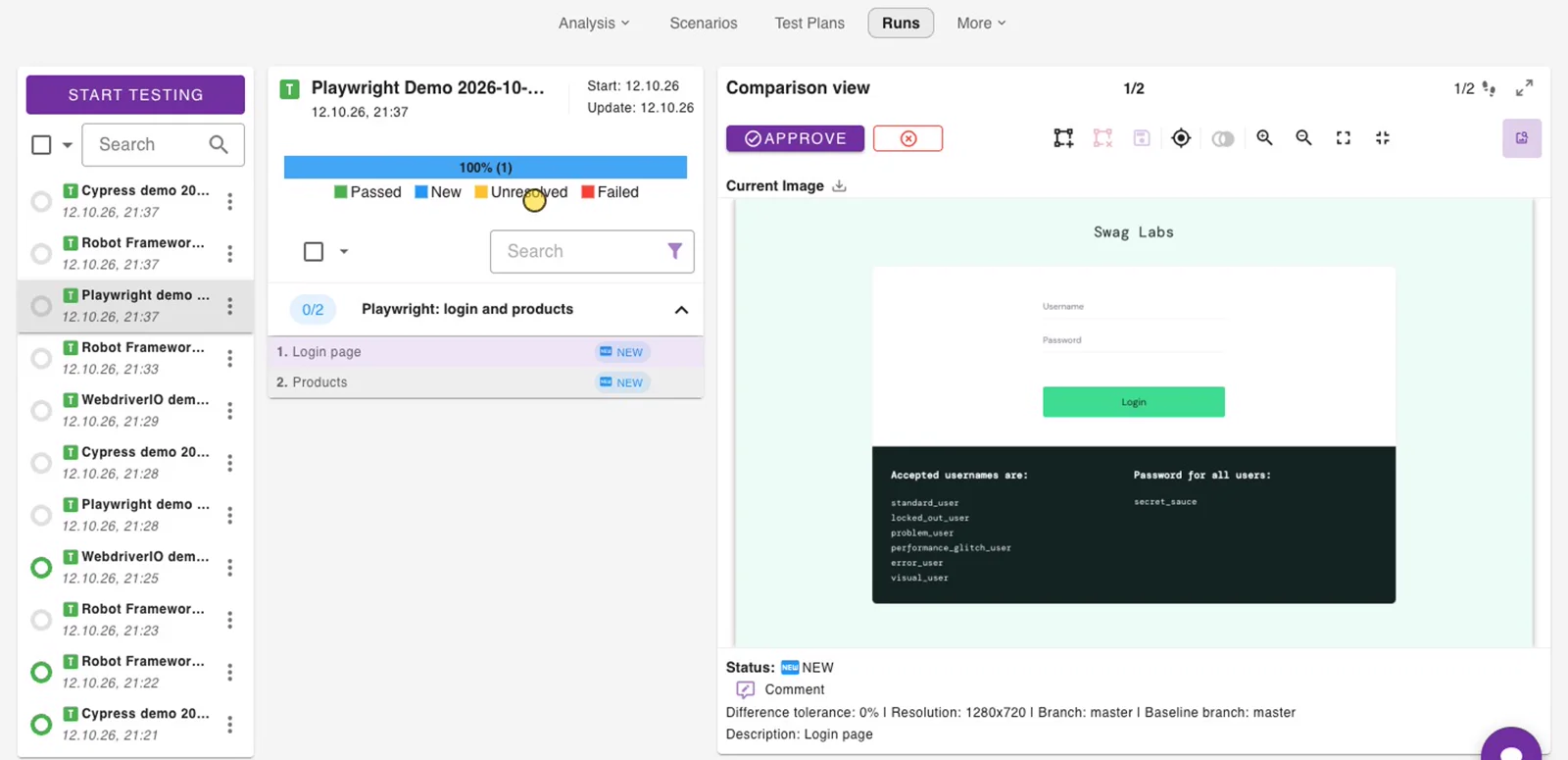
- Approve makes the screenshot the baseline of the step.
- Reject (the red button next to it) marks the screenshot as a bug. The baseline stays as it was.
- To decide many steps at once, select them in the scenario list and approve or reject them together.
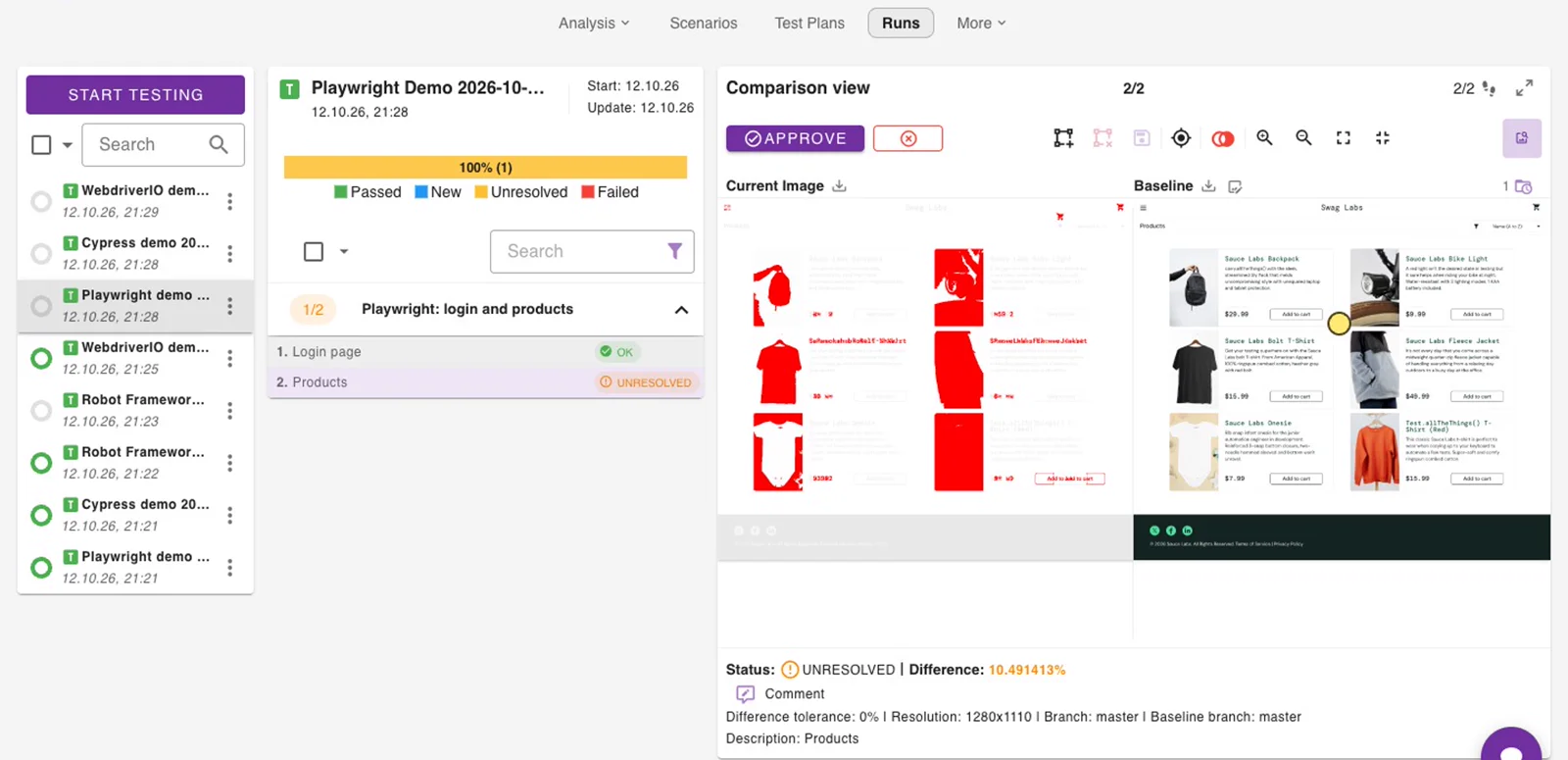
- The difference overlay highlights the changed pixels. The line under the image shows the difference in percent, the tolerance, the resolution, the branch and the baseline branch.
On the next run, matching steps are ok and changed steps are unresolved:
Baselines and branches
- Set the branch of a run with
WOPEE_BRANCH_NAME(or thebranchNameoption of the plugin). The SDKs default tomaster. - Approved baselines are listed under More › Baselines. There you can delete baselines and merge the baselines of one branch into another (Merge Branches), for example after a feature branch is merged.
- Add Baseline in More › Baselines defaults to the branch
main, while the SDKs default tomaster. Use the same branch name in both places, or a baseline you add by hand is never compared with your runs.
Wait for fonts and images before tracking
A screenshot taken while web fonts or images are still loading shows up as a difference on the next run, or worse, becomes a baseline with missing text and pictures. Wait until the page is complete before each track call:
// Runs in the page. Forces every web font to load and every image to decode.
await Promise.all([
  ...[...document.fonts].map((font) => font.load()),
  ...[...document.images].map((img) => img.decode().catch(() => {})),
]);
document.fonts.status and document.fonts.ready are not enough: they can report loaded while font faces the page uses are still unloaded. Cypress needs this wait explicitly, see Cypress. In the other frameworks, wait for the content you want to capture (for example the product list) before tracking.
Any other framework (GraphQL API)
All SDKs talk to the same GraphQL API, so you can send screenshots from any language or tool. There is no separate API reference yet; this section lists the calls the SDKs make.
- Endpoint:
POSTtoWOPEE_API_URLitself (for examplehttps://api.wopee.io), with a JSON body{"query": "...", "variables": {...}}. - Authentication: the API key in the
api_keyheader. Current API versions also acceptx-api-key, which helps when a proxy drops header names with an underscore. The SDKs send both.
The calls, in order:
| Mutation | Arguments | Returns |
|---|---|---|
createIntegrationSuite |
projectUuid: ID!, name: String!, suiteIntegrationConfig: { branchName } |
uuid, name |
createIntegrationScenario |
projectUuid: ID!, suiteUuid: ID!, name: String |
uuid, name |
createIntegrationStep |
input: CreateIntegrationStepInput! (below) |
status, url, diffPercent, branchName, baselineBranchName, … |
stopIntegrationScenario |
scenarioUuid: ID!, projectUuid: ID! |
uuid |
stopIntegrationSuite |
suiteUuid: ID! |
uuid |
CreateIntegrationStepInput:
| Field | Required | Description |
|---|---|---|
projectUuid |
yes | WOPEE_PROJECT_UUID |
scenarioUuid |
yes | From createIntegrationScenario |
stepName |
yes | Step name shown in Commander |
trackName |
yes | Baseline key. The SDKs send <scenario name>-<step name>; do the same to share baselines with them. |
imageBase64 |
yes | The screenshot as base64-encoded PNG, without a data: prefix |
os, browser, viewport, device, customTags |
no | Labels that are part of the baseline identity |
pixelToPixelDiffTolerance |
no | Difference in percent that still counts as a match |
comment |
no | Free text stored with the step |
baselineBranchName |
no | Branch to compare with when the current branch has no baseline |
status is one of new, ok, unresolved, autoApproved (and approved or failed for a step that was already reviewed). url opens the step in Commander.
Example with curl, starting a suite on the branch master:
curl -s "$WOPEE_API_URL" \
  -H "Content-Type: application/json" \
  -H "api_key: $WOPEE_API_KEY" \
  -d '{
    "query": "mutation($projectUuid: ID!, $name: String!, $config: SuiteConfigInput) { createIntegrationSuite(projectUuid: $projectUuid, name: $name, suiteIntegrationConfig: $config) { uuid name } }",
    "variables": {
      "projectUuid": "'"$WOPEE_PROJECT_UUID"'",
      "name": "My run 2026-10-12 10:00",
      "config": { "branchName": "master" }
    }
  }'
Then create a scenario with the returned suite uuid, send one createIntegrationStep per screenshot, and stop the scenario and the suite at the end.